
Features
Is there a study planner that works on iPhone without the App Store?
Verified on: October 27, 2026
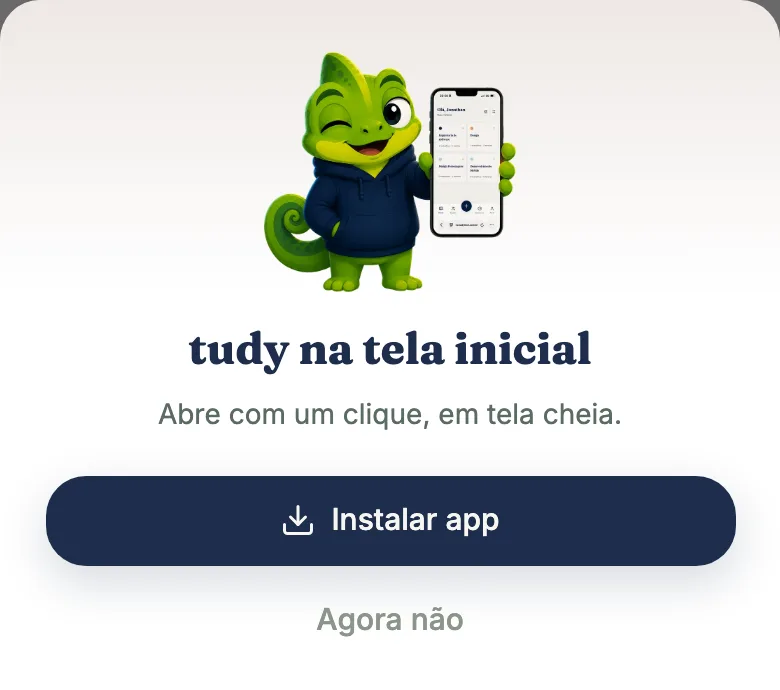
tudy isn’t on the App Store or Google Play: it’s a web app that runs in your browser and can be added to your home screen on iPhone, Android or a computer in a few taps. Once added, it gets its own icon and opens full screen like an app. It’s free, and the Free plan includes all of this.
What being a web app means
tudy is a PWA (progressive web app). In practice: you open tudyapp.com.br in your browser, use it normally, and if you want, pin it to your phone’s home screen. There’s no store download, it doesn’t take up space like a heavy app, and you’re always on the latest version without updating anything.
Your account is the same on every device, and everything lives in the cloud. Use your phone on the bus and your laptop at home with the same data.
How to install on iPhone
- Open tudy in Safari.
- Tap the Share button.
- Choose “Add to Home Screen.”
- Confirm. The tudy icon shows up among your apps.
How to install on Android
- Open tudy in Chrome (or another supported browser).
- Tap the ⋮ menu.
- Choose “Add to Home screen” (or “Install app”).
tudy also shows an install invitation at a good moment and keeps an “Install tudy” row in Settings that shows how to do it on your device. On a computer, browsers like Chrome offer installing too.
What changes once it’s installed
- tudy opens full screen, without the browser bar, with its icon on your home screen.
- It has shortcuts for Start timer, Open calendar and Study flashcards on devices that show shortcuts when you press and hold the icon.
- On iPhone, it can start sending you notifications.
Notifications on iPhone
On iPhone, tudy’s notifications (a reminder for a deadline due tomorrow, an alert that your streak is at risk) only work with the app added to your home screen, on iOS 16.4 or newer. In a Safari tab, the iPhone doesn’t allow them. On Android and desktop they work right in the browser. They’re optional and you turn them on in Settings or in the prompt that appears after you create a deadline.
What’s free and what’s Pro
Installing is the same for everyone, on Free and Pro. Pro only changes the limits (for example, unlimited subjects) and unlocks features like Talk to tudy and Calendar export. Pro is $3.99 a month or $29.99 a year, paid by card.
What the installed app doesn’t do
- It doesn’t work offline. tudy needs a connection. The installed app doesn’t keep an offline copy of your data, because the app’s background worker exists only for notifications.
- It isn’t in the stores. If you search “tudy” in the App Store, you won’t find it. Go through the website.
- It can’t send notifications on iPhone without being installed. That’s an iOS rule.
- It isn’t a native app. It runs inside the browser, just without the frame around it. For most students that makes no difference; features that depend on the system, like the timer’s floating window, depend on the browser you use.
When it’s worth installing
You can use tudy in the browser alone, and it works well. Installing is worth it if you want to open the app with one tap instead of typing the address, stay full screen while you study, or get deadline reminders and streak alerts on your phone. On a computer, installing is handy for keeping tudy in its own window next to your online lectures.
Quick summary
Open the website, add it to your home screen, log in. In under a minute you have tudy as an icon on your phone. For group work, the link to a team project also opens right in your phone’s browser.
Frequently asked questions
Is tudy on the App Store or Google Play?
No. tudy is a web app (a PWA). You use it in your browser or add it to your home screen, with no store involved.
How do I install tudy on iPhone?
In Safari, tap Share and choose 'Add to Home Screen.' tudy gets its own icon and opens full screen.
How do I install it on Android?
Tap your browser's ⋮ menu and choose 'Add to Home screen' (or 'Install app'). tudy may also offer to install at a good moment.
Do notifications work on iPhone?
Only when tudy is added to your home screen, and on iOS 16.4 or later. That's an Apple requirement for web notifications. On Android and desktop they work in the browser.